

Download the Markdown file
1
Open the Download tab
In the editor, select the arrow beside Download PDF, or press ⌘ ⇧ E (
Ctrl Shift E on Windows and Linux).
2
Choose Markdown
Select Markdown. The file name ends in
.md; change the name in File name if you like.3
Download
Select Download Markdown. Your browser saves the file.
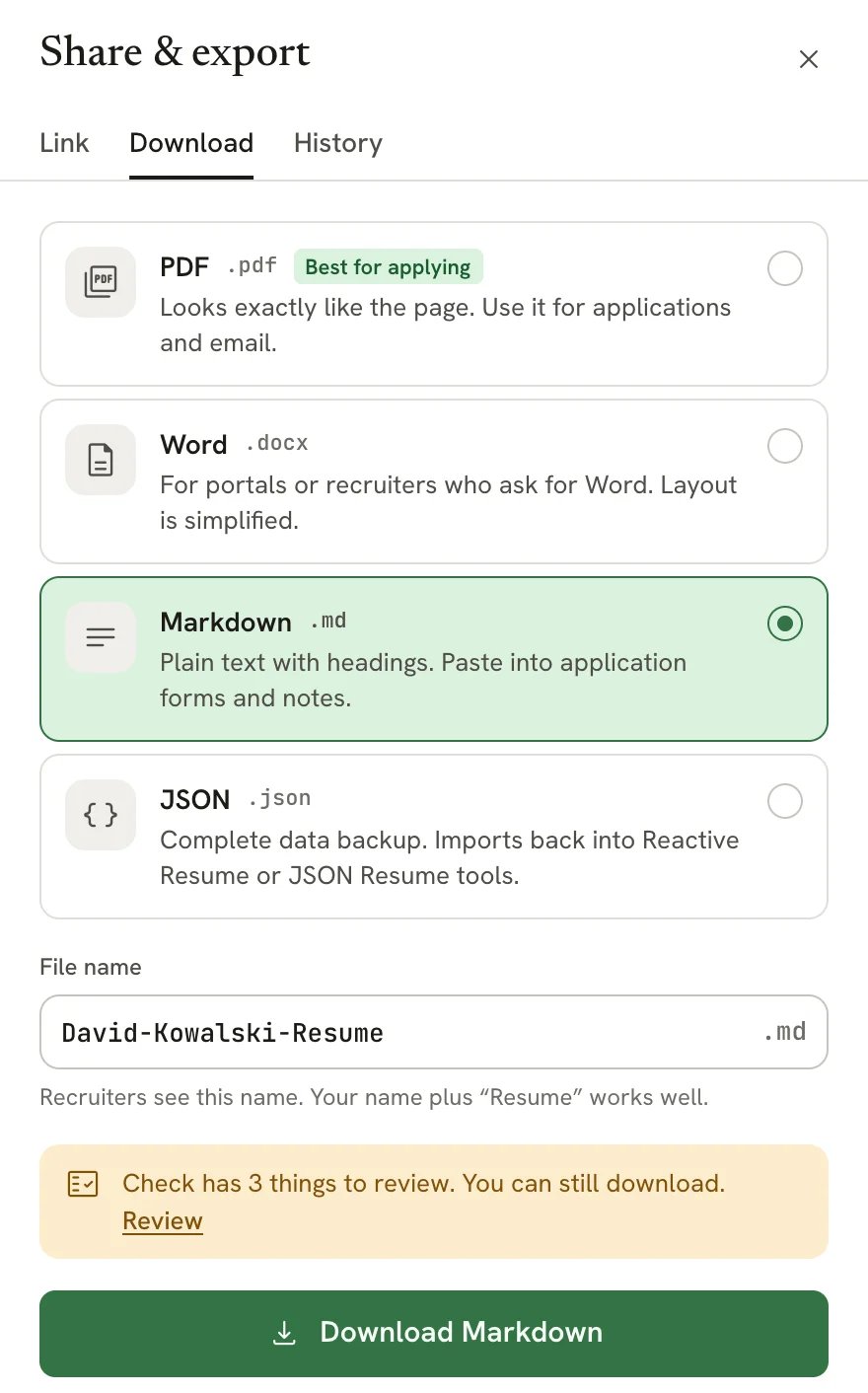
Markdown selected on the Download tab
What the file looks like
This is the start of a Markdown export of the sample resume, shortened:What’s included
The file keeps:- your name, headline and contact details;
- every visible section and entry, with section titles in your resume’s language;
- paragraphs, numbered and nested lists, links, bold, italic and strikethrough text. Underline is kept as HTML
<u>markup where the Markdown viewer supports it.
- hidden sections and entries;
- your photo;
- the template, fonts, colors, columns, icons and page breaks.
Ways to use it
If an AI tool rewrites your Markdown, review the changes, then copy the parts you want back into the editor. Reactive Resume doesn’t import Markdown files.
Related guides
- Downloading your resume: PDF, Word and JSON, and when to use each.
- Sharing your resume with a link: send a link instead of a file.